---
title: Conduct System Test
description: A step-by-step guide on conducting a system test using Headcount - the evacuation app.
---
[Skip to content](https://kb.headcount.io/system-test-step-by-step#main-content)
English
Show submenu for translations
[More support](https://kb.headcount.io/kb-tickets/new?hsLang=en)

Open main navigation
Close main navigation
- English
Show submenu for translations
- [More support](https://kb.headcount.io/kb-tickets/new)
- [Contact us](https://kb.headcount.io/kb-tickets/new)
[Contact us](https://kb.headcount.io/kb-tickets/new?hsLang=en)
How can we help you?
- There are no suggestions because the search field is empty.
1. [Knowledge Base](https://kb.headcount.io/?hsLang=en)
2. [Getting started](https://kb.headcount.io/getting-started?hsLang=en)
3. [System Test](https://kb.headcount.io/getting-started?hsLang=en#system-test)
# Conduct System Test
| **Estimated Time:** | 30 minutes |
| --- | --- |
1. Double check your data is correctly inside of Headcount by viewing your emergency roster on the [Admin \> Employees](https://app.headcount.io/admin/employees) screen.
1. If you need to make adjustments you can do so with a spreadsheet import (previous step).
2. Go to the [Emergencies screen](https://app.headcount.io/dashboard) and click the **Setup New Emergency** button
1. Note: this can be done from a phone, tablet, laptop, or desktop computer.
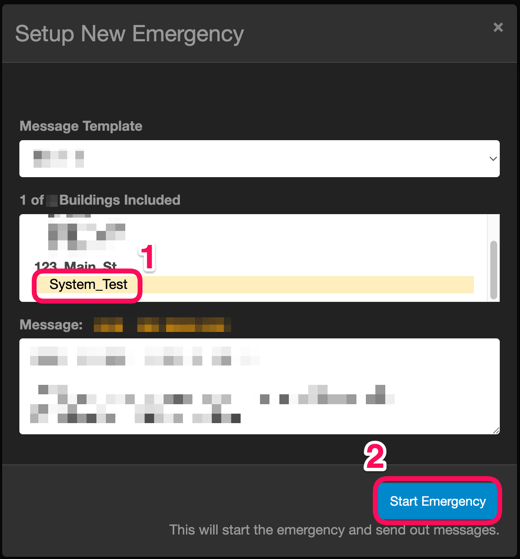
1. Under **Building(s)**, select *System\_Test*, then click **Start Emergency**
1. Note: clicking Start Emergency is what sends out the alert messages
1. Try the core functionality:
1. Real-Time Updates
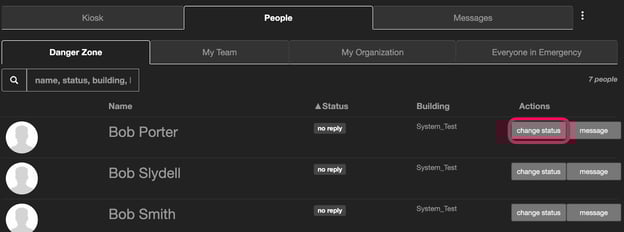
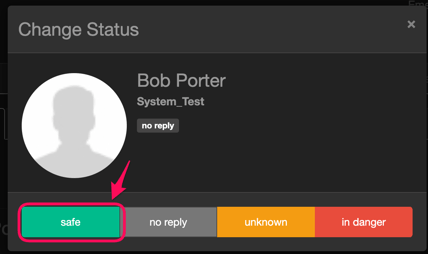
1. Account for someone In-Person by clicking the **Change Status** button
1. Observe the real-time updates of statuses between devices
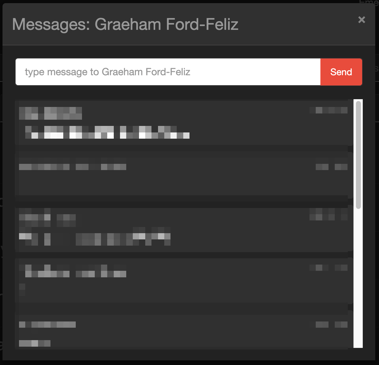
1. Find your name in the list and click the **Message** button for your row
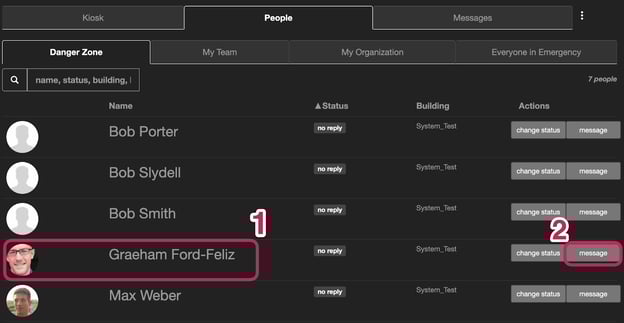
1. The message thread between you and the Headcount app will appear.
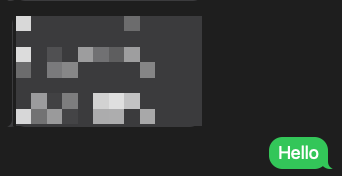
1. Check your SMS text messages on your phone and **reply to the alert message** inside your text messaging app
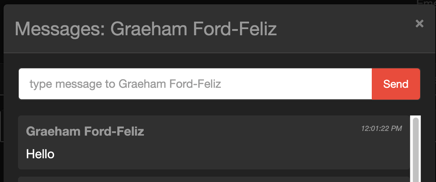
1. Observe the real-time updates of messages inside of Headcount
1. Self Check-In
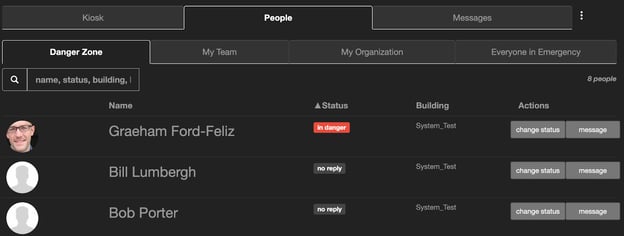
1. Close the Messages screen, so you are seeing the **People \> Danger Zone** screen.
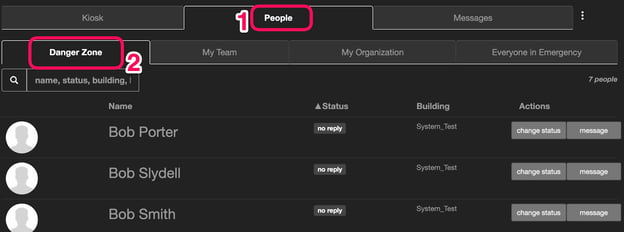
1. In the SMS text messaging app on your phone, **reply with a “2”** to mark yourself in-danger.
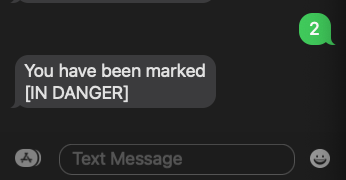
1. Observe your status changing inside of the app, across all devices
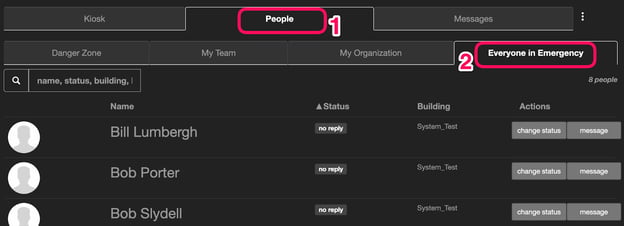
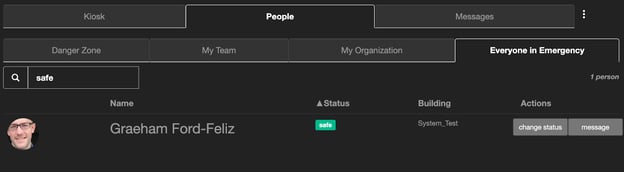
1. Go to **People \> Everyone in Emergency**
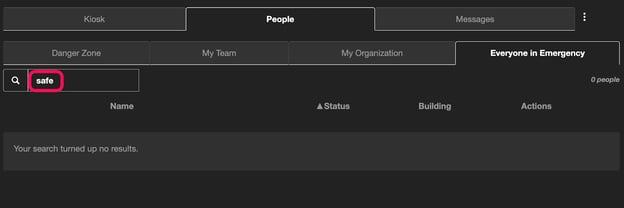
1. Type “safe” into the search box
1. In the SMS text messaging app on your phone, **reply with a “1”** to mark yourself safe.
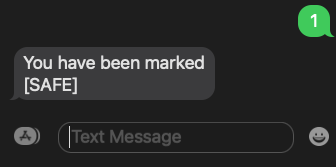
1. Observe your status changing in the app and you showing up on the “safe” filtered list of the emergency roster
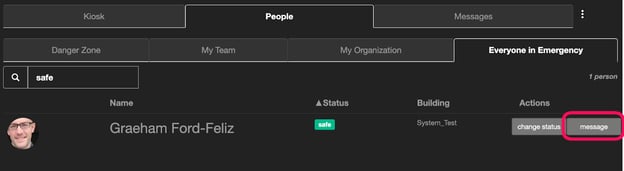
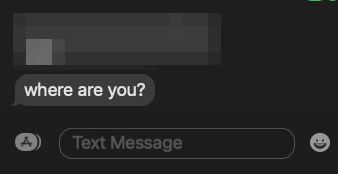
1. Send One-on-One Messages
1. Click the **Message** button from the **People** tab
1. Type a message then click **Send**
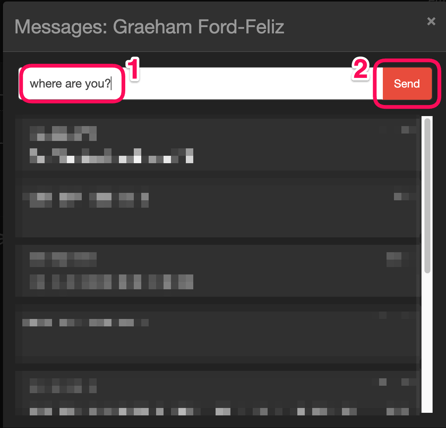
1. Observe the message in your SMS text messaging thread
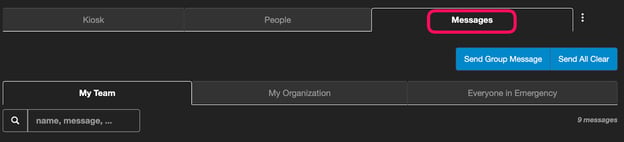
1. Send “Progressive Crowdsourcing” Messages to Find Missing People
1. Go to the **Messages** tab (top right)
1. Click the blue **+Messages** button and send a group message.
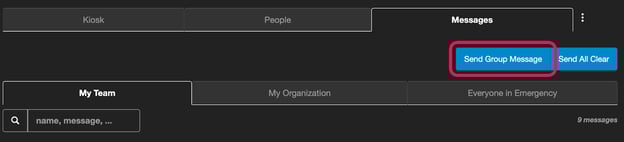
1. Observe that the **My Team** button is selected by default.
2. Type a message to ask if your team has seen a team member
3. Click the **Send** button
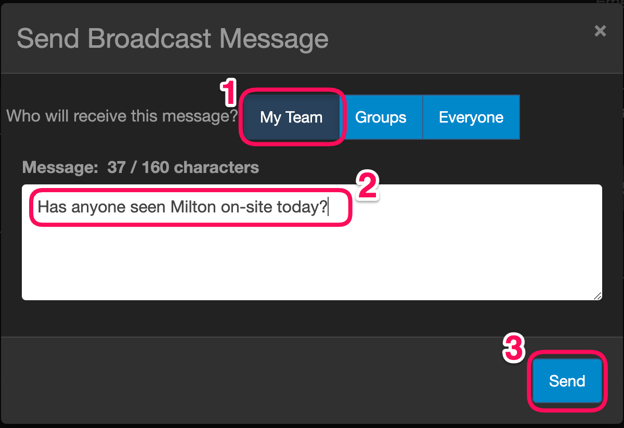
1. Observe the message is sent to everyone on your team (assigned to you as the **Manager** from the import spreadsheet).
2. Observe the replies as they arrive in the **Messages** tab in real-time.
3. Note 1: The **My Team**, **My Org**, and **Everyone** sub-tabs are filters. They filter the messages to and from people on those lists.
4. Note 2: The search box is used to filter a message by sender, recipient, or message text
1. Spend some time exploring the app
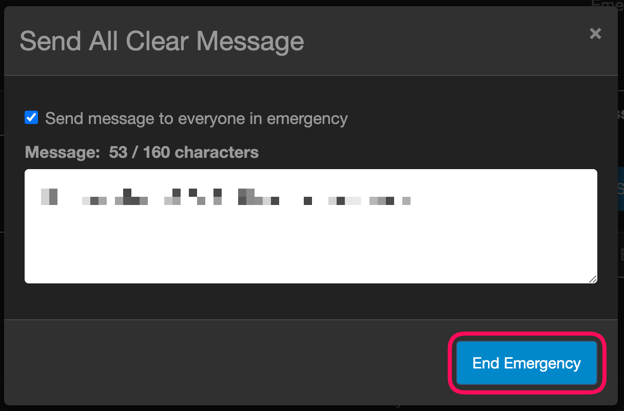
2. When you’re ready, go to the **Messages** tab (top right) and click the blue **Send All Clear** button.
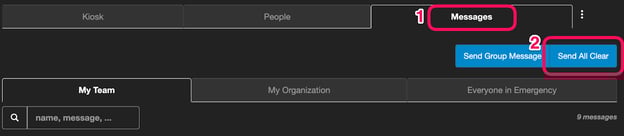
1. Click the **End Emergency** button.
1. This will end the emergency event and automatically generate your reports
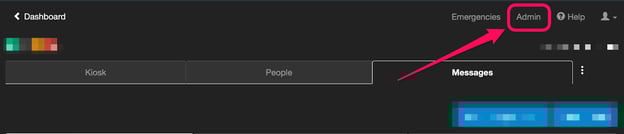
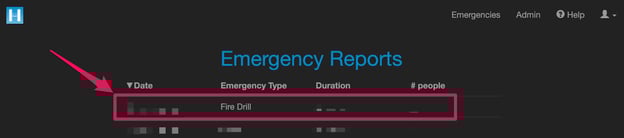
1. Go to **Admin** \> **Reports**
Note: If you do not see the **Admin** link in the top navigation menu, that means you do not have an Admin role. To fix this add an Admin role in the spreadsheet and import it. Because you changed your role, you need to sign-out and sign back in again.
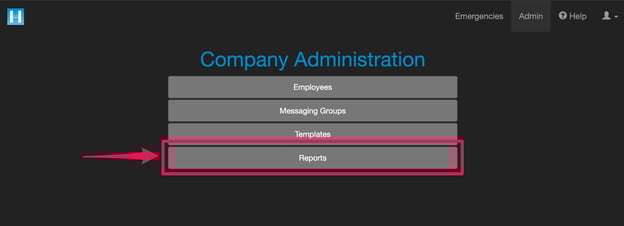
1. Click the top row to open the report for your system test
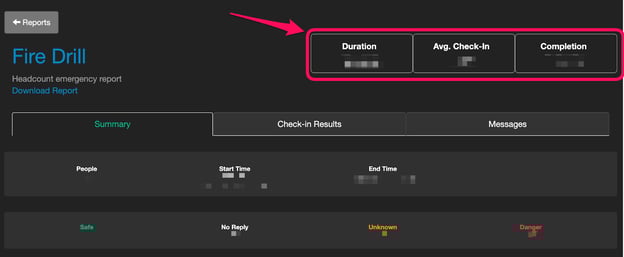
1. Observe the Key Performance Indicators (KPI’s) on the top right
1. Use these to measure your improvement over time
This is a critical part in your journey to understanding what Headcount is capable of (spoiler alert, there’s more).
---
We want to make sure you have a firm foundation before moving forward.
Email your headcount rep to let them know you are finished.
We want to make sure you are 100% confident with this process before you move forward with more people on your emergency roster.
Email your Headcount rep right now.
**Copy-paste** template:
—
`Hello,`
`I just completed my system test.`
`Just letting you know.`
`Best,`
—
Cheers to completing your system test!
You’re all done.
---
### **Support**
The Headcount support team is available to you via email at [support@headcount.io](mailto:support@headcount.io)
Expect a reply to your email within 24 hours.
If you need more immediate assistance, contact your Headcount rep directly.
- [Getting started](https://kb.headcount.io/getting-started?hsLang=en#main-content)
- [System Test](https://kb.headcount.io/getting-started?hsLang=en#system-test)
- [Badge Scanner](https://kb.headcount.io/getting-started?hsLang=en#badge-scanner)
- [Training](https://kb.headcount.io/training?hsLang=en#main-content)
- [Admin](https://kb.headcount.io/training?hsLang=en#admin)
- [Group Leader](https://kb.headcount.io/training?hsLang=en#group-leader)
- [General Population](https://kb.headcount.io/training?hsLang=en#general-population)
- [FAQs](https://kb.headcount.io/faqs?hsLang=en)
- [General](https://kb.headcount.io/general?hsLang=en)
[.png?width=424&height=192&name=Headcount%20(1).png "Headcount (1)")](http://Headcount.io)
123 Waverly Pl., Boston, MA 02135
[mailto:hello@headcount.io](mailto:hello@headcount.io)
Copyright © 2025, Headcount - the evacuation app